
🕑 Estimated reading time: 5 minutes | Last updated: September 3, 2024
To secure your home Wi-Fi, change the router’s default admin password, use WPA3 (or WPA2-AES) encryption with a long unique Wi-Fi password, update the router firmware or replace it if it no longer gets updates, disable WPS and remote management, put smart home devices and visitors on a separate guest network, turn off UPnP if you do not need it, and regularly review which devices are connected.
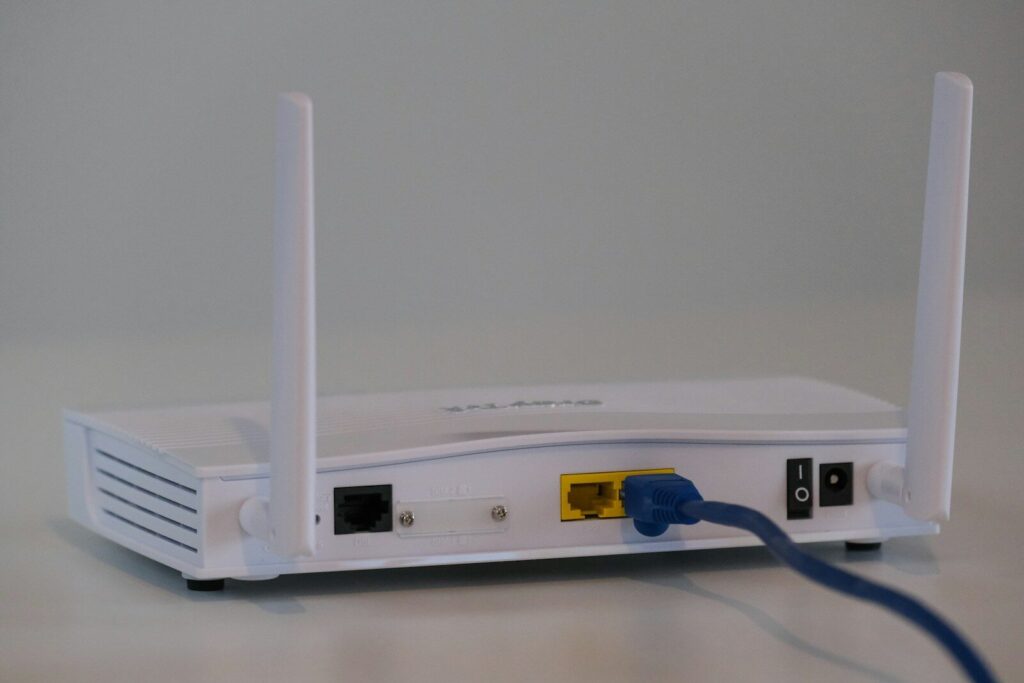
Your Wi-Fi router quietly carries everything: banking, work calls, the children’s homework, the security camera. Yet most of us set it up once, years ago, and have not touched it since. Half an hour of attention can make a big difference.
Your home router quietly handles everything: work calls, online banking, children’s schoolwork, smart TVs, security cameras and voice assistants. If an attacker controls it, they can spy on traffic, redirect you to fake websites, attack other devices on your network or use your connection for crime. Yet many routers still run with default settings and outdated software for years.
Thankfully, securing a home network does not require technical expertise. These 12 steps will make your Wi-Fi far harder to break into.
Table of Contents
First, Log In to Your Router
Most routers have a web or app-based admin panel. The address (often something like 192.168.0.1 or 192.168.1.1) and default login details are usually printed on a sticker on the router or in the manual. Many internet providers also offer an app to manage their routers.
12 Steps to a Secure Home Network
1. Change the default admin password
The password used to log in to the router’s settings is different from your Wi-Fi password. Default admin credentials are often shared across thousands of devices and listed online. Replace them with a strong, unique password stored in your password manager.
2. Use the strongest Wi-Fi encryption
Choose WPA3-Personal if your router and devices support it. If not, use WPA2-Personal with AES. Never use WEP or open networks, and avoid the older TKIP option. A “WPA2/WPA3 transitional” mode can help if some older devices do not support WPA3.
3. Set a long, unique Wi-Fi password
Use at least 12 to 16 characters, ideally a passphrase of several random words. Do not use your name, address or phone number. If the network name and password came from your provider, consider changing them.
4. Rename your network sensibly
Change the default network name (SSID) so it does not reveal your router model or identify your household, for example avoid “TP-Link_1234” or “Okafor Family.” Hiding the network name offers little real security, so it is not necessary.
5. Update the router firmware
Router vulnerabilities are regularly discovered and exploited, sometimes to build large botnets. Turn on automatic updates if available, or check for updates every few months. Your provider may update their routers automatically.
6. Replace routers that no longer receive updates
If the manufacturer has stopped issuing security updates for your model, it will become increasingly vulnerable. Replacing an old router is one of the best security upgrades you can make. Look for models with a clear support period and automatic updates.
7. Disable WPS
Wi-Fi Protected Setup lets devices join with a button press or PIN. The PIN method has known weaknesses that can allow attackers to recover the Wi-Fi password. Turn WPS off if you do not need it.
8. Turn off remote management
Unless you genuinely need to manage your router from outside your home, disable remote administration so the admin panel is not exposed to the internet.
9. Use a guest network
Create a separate guest network for visitors and, ideally, for smart home devices such as cameras, plugs and TVs. These devices are often less secure, and isolating them prevents a compromised gadget from reaching your laptop or phone. Enable “client isolation” on the guest network if available.
10. Consider disabling UPnP
Universal Plug and Play allows devices to open ports on your router automatically, which is convenient for gaming consoles and some apps but can also be abused by malware. If you do not need it, turn it off; if you do, keep devices updated.
11. Review connected devices
Check the list of connected devices in your router’s panel periodically. Unknown devices may indicate someone is using your Wi-Fi; change the password if so.
12. Use secure DNS
Many routers let you choose a DNS provider. Reputable security-focused DNS services can block known malicious and phishing domains for every device on your network, and some offer family filtering.
Secure the Devices, Too
A secure router is only part of the picture. Keep phones, laptops and smart devices updated, change default passwords on cameras and other gadgets, remove devices you no longer use, and turn on firewalls built into your operating systems.
Working From Home Safely
- Use your employer’s VPN or secure access tools as instructed.
- Keep work devices separate from family use where possible.
- Consider putting work devices on a different network from smart home gadgets.
- Lock screens when you step away.
What About Public Wi-Fi?
Most websites now use HTTPS encryption, which protects your data even on public Wi-Fi. Risks remain from fake hotspots and outdated devices. Prefer your mobile data for sensitive tasks, check that you are connecting to the venue’s genuine network, and turn off automatic connection to open networks.
Signs Your Router May Be Compromised
- settings or passwords changed without your knowledge;
- unexpected redirects to unfamiliar websites or many pop-ups;
- unknown devices on the network;
- unusually slow connection or high data usage.
If you suspect a problem, reset the router to factory settings, update its firmware immediately and reconfigure it using the steps above.
Start with your router’s security settings
Securing your home Wi-Fi takes about 30 minutes and protects every device in your household. Strong encryption, unique passwords, regular updates and a separate network for smart gadgets will stop the vast majority of attacks against home networks.
Frequently Asked Questions
How often should I change my Wi-Fi password?
If it is long and unique, you do not need to change it routinely. Change it if you suspect it has been shared too widely or if unknown devices appear.
Is WPA3 much safer than WPA2?
Yes. WPA3 offers stronger protection against password-guessing attacks and improved encryption.
Do I need a separate firewall at home?
For most homes, the router’s built-in firewall and device firewalls are sufficient if properly configured and updated.